Back to: Advanced Physical Security Integration (APSI)
Lesson 13.2: Crisis Management (Bricked Units, IP Conflicts & Recovery)
Module: 13 – Fieldcraft & Troubleshooting Scenarios Prerequisites: Lesson 13.1 (Electrical Physics) Estimated Time: 45–60 Minutes
1. Learning Objectives
By the end of this lesson, you will be able to:
- Recover a “bricked” camera (failed update) using TFTP (Trivial File Transfer Protocol).
- Diagnose an IP Conflict using the ARP Table to find out why a device is knocking the CEO’s printer offline.
- Execute a “Hardware Reset” on older equipment by shorting internal pins when no reset button exists.
- Utilize Wireshark to find a “Lost” camera that is on the wrong subnet.
2. The “Bricked” Camera (The TFTP Rescue)
Scenario: You hit “Update Firmware.” The power flickered halfway through. Now the camera won’t turn on. No web page, no ping. It is a “Brick.”
The Secret: Most cameras have a tiny, primitive “Emergency Bootloader” that listens for a file for 1 second during startup.
The Fix (TFTP Recovery):
- Download: A free TFTP Server app (like Tftpd64) to your laptop.
- Static IP: Set your laptop to a specific IP required by the manufacturer (e.g., Hikvision looks for
192.0.0.128, Axis looks for192.168.0.90). Check the manual. - The Process:
- Rename the firmware file (e.g.,
digicap.dav). - Connect the camera directly to your laptop via Cat6.
- Power Cycle the Camera.
- Watch the log: The camera wakes up, shouts “Give me the file!”, your laptop sends it, and the camera flashes itself back to life.
- Rename the firmware file (e.g.,
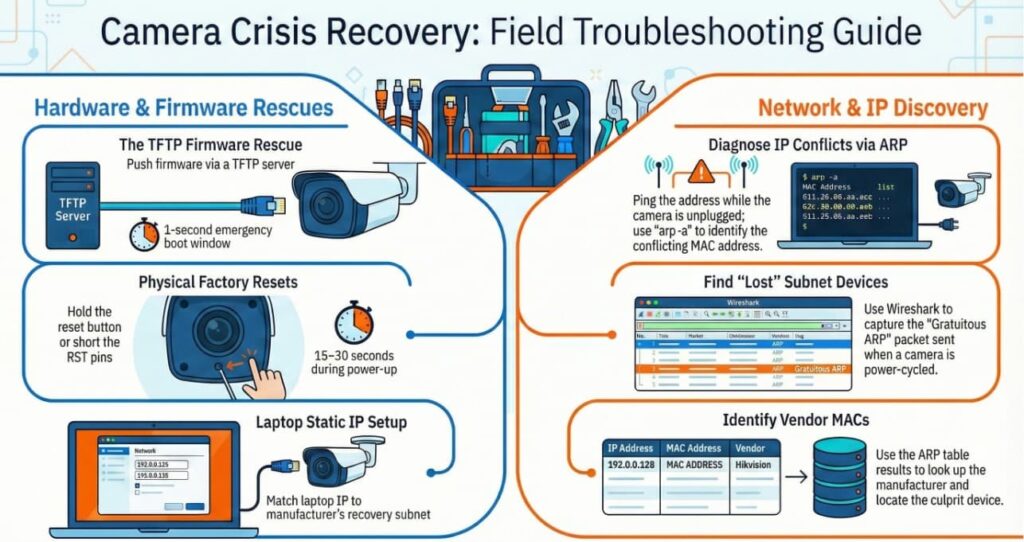
3. The IP Conflict (The Network Killer)
Scenario: You set a camera to static IP 192.168.1.50. Suddenly, the Office Manager screams that the printer stopped working.
The Physics:
- IP Addresses must be unique. If two devices claim
.50, the switch gets confused and sends packets to both or neither. The connection flaps (On/Off/On/Off).
The Diagnosis (The ARP Command):
- Unplug your camera.
- Open Command Prompt (CMD) on your laptop.
- Type:
ping 192.168.1.50- Result: If you get a reply while your camera is unplugged, something else is using that IP.
- Type:
arp -a- This shows the MAC Address of the device responding.
- Look up the MAC Vendor (e.g., “HP” = Printer, “Axis” = Camera). You just found the culprit.
4. The “Lost Password” (Hardware Hard Reset)
Scenario: The client fired the old IT guy. No one knows the camera password. You need to reset it, but you can’t log in to hit “Factory Reset.”
Method A: The Button
- Most modern cameras have a physical button.
- Procedure: Unplug power. Hold button. Plug in power. Keep holding for 15-30 seconds. (If you let go too early, it just reboots).
Method B: Shorting the Pins (Old School)
- Older cameras (or cheap boards) don’t have a button. They have two tiny solder points labeled
RESETorGND / RST. - Procedure:
- Take a metal screwdriver or a paperclip.
- Touch both pins simultaneously (creating a short circuit).
- Power up the camera while holding the short.
- Wait 15 seconds. Remove the screwdriver.
5. The “Lost” Device (Wireshark Discovery)
Scenario: You plug in an old camera. You don’t know its IP. It’s not 192.168.1.xxx. It’s invisible.
The Tool: Wireshark. Wireshark listens to all traffic on the wire, even “garbage” traffic.
The Process:
- Install Wireshark (Free).
- Plug the camera directly into your laptop.
- Start Capture.
- Power Cycle the Camera.
- Watch the Matrix: Even if it has a weird IP (like
10.5.2.99), when it boots up, it will send a “Gratuitous ARP” or a “Hello” packet saying: “Who am I? I am 10.5.2.99”. - Catch it: Now you know the IP. Change your laptop to the
10.5.2.xrange, log in, and fix it.
6. Quiz: Check Your Understanding
- Troubleshooting: You configure a new NVR to
10.0.0.200. It works for 5 minutes, then disconnects, then reconnects. The IT manager says, “That’s the Gateway IP!” Why is this happening? - Recovery: You are trying to TFTP recover a bricked camera. You have the software running, but the camera never asks for the file. What specific network setting on your laptop did you likely forget to change?
- Fieldcraft: You find a camera with no reset button. You see two pins labeled
RST. Should you short them while the camera is running, or while it is booting up?
(Self-Correction/Answers)
- IP Conflict. The NVR is fighting the Gateway/Router for the same address. The switch is flip-flopping between them. Change the NVR IP immediately.
- Static IP. TFTP only works if your laptop is on the specific subnet the bootloader expects (e.g., if the camera hunts on
192.0.0.x, but you are on192.168.1.x, it will never hear the call). - Booting up. Most reset logic is only active during the first few seconds of the boot sequence (Power On Self Test).