Back to: Advanced Physical Security Integration (APSI)
Lesson 2.1: The OSI Model – A Map for Troubleshooting
Module: 2 – Networking for Security Professionals Prerequisites: Module 1 (Completed) Estimated Time: 45–60 Minutes
1. Learning Objectives
By the end of this lesson, you will be able to:
- Identify the 7 layers of the OSI model, with a specific focus on Layers 1, 2, and 3.
- Differentiate between a MAC Address (Layer 2) and an IP Address (Layer 3).
- Diagnose network failures by “walking up the stack” (Checking physical connections before checking software settings).
- Explain why a Switch functions at Layer 2 and a Router functions at Layer 3.
2. Why Do Integrators Need This?
The OSI (Open Systems Interconnection) model is a conceptual framework that describes how data moves from point A to point B.
For a security integrator, the OSI model is not just theory—it is a Troubleshooting Checklist. When a camera is “offline,” it is usually broken at Layer 1, 2, or 3. If you know which layer is broken, you know if you need a screwdriver (Layer 1) or a laptop (Layer 3).
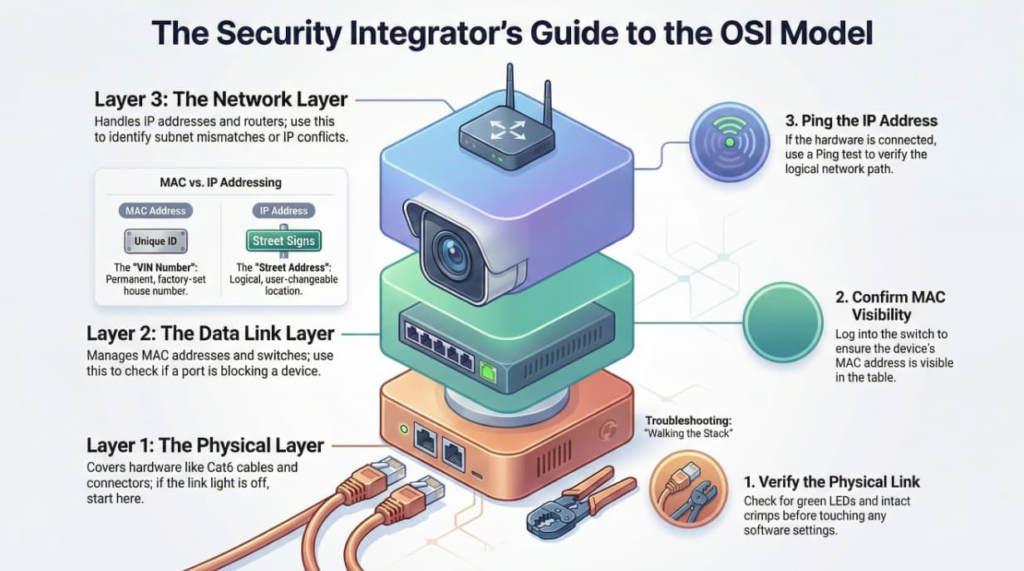
3. The “Big Three” Layers for Security
While there are 7 layers, 90% of a technician’s job happens in the bottom three.
Layer 1: The Physical Layer
- What it is: The actual hardware that transmits the raw bitstream (electrical pulses or light).
- The Hardware: Copper cable (Cat6), Fiber optics, RJ45 connectors, WiFi radio waves, Hubs (obsolete).
- The Troubleshooting Question:“Is the link light on?”
- If the LED on the switch port is dead, no amount of IP configuration will fix it. You have a Layer 1 problem (cut cable, bad crimp, or no power).
Layer 2: The Data Link Layer
- What it is: Node-to-Node transfer. This layer ensures data moves safely between two devices connected to the same physical wire.
- The Address:MAC Address (Media Access Control).
- This is the “VIN Number” of the device. It is hard-coded at the factory and typically cannot be changed.
- Format:
00:1A:2B:3C:4D:5E
- The Hardware:Network Switches.
- A switch learns which MAC address is plugged into which port. It builds a “MAC Address Table.”
- The Troubleshooting Question:“Is the Port Security blocking me?”
- Sometimes IT departments lock a switch port to a specific MAC address. If you swap a camera, the new camera has a new MAC address, and the switch blocks it.
Layer 3: The Network Layer
- What it is: Routing data between different networks (e.g., From the Camera Network to the Office Network).
- The Address:IP Address (Internet Protocol).
- This is the “House Address.” It is logical and can be changed by the user.
- Format:
192.168.1.50
- The Hardware:Routers.
- Routers read IP addresses and decide the best path to send data.
- The Troubleshooting Question:“Can I Ping the device?”
- If Layer 1 (Link light) is on, but you can’t Ping the camera, you have a Layer 3 issue (Wrong IP, Subnet Mask mismatch, or Duplicate IP).
4. The Upper Layers (The Software Stack)
We touch on these briefly, as they are usually “VMS issues” rather than “Wiring issues.”
- Layer 4: Transport: (TCP/UDP). Decides how to send data.
- TCP (Transmission Control Protocol): Reliable. “Did you get that packet? No? Okay, I’ll send it again.” (Used for firmware updates, access control database sync).
- UDP (User Datagram Protocol): Fast but unreliable. “Here is video! Here is more video!” If a packet drops, it doesn’t care. (Used for Live Video streaming where speed > perfection).
- Layer 5 (Session), 6 (Presentation), 7 (Application):
- This is where the VMS software (Milestone/Genetec) lives. If Layers 1-4 are working (Link light on, Ping successful, Port open), but the image is black, it’s a Layer 7 software configuration issue.
5. The “Pizza Delivery” Analogy
To remember the layers, imagine ordering a pizza:
- Layer 7 (Application): You call the pizza place and place an order. (You interacting with the software).
- Layer 4 (Transport): The shop decides to send it via Car (Reliable/TCP) or Motorcycle (Fast/UDP).
- Layer 3 (Network): The driver looks at the Address (123 Main St) to find your neighborhood.
- Layer 2 (Data Link): The driver looks for your specific House Number (MAC address) once they are on your street.
- Layer 1 (Physical): The Road itself. If the road is broken (cable cut), the pizza never leaves the shop.
6. Practical Exercise: “Walking the Stack”
A customer calls: “The camera in the Lobby is down.” Do not guess. Follow the OSI path:
- Check Layer 1: Go to the switch. Is the port LED blinking green?
- No? Swap the patch cable. Check the crimp. Check PoE budget.
- Yes? Proceed to Layer 2.
- Check Layer 2: Log into the switch. Do you see the camera’s MAC address in the MAC Table?
- No? The port might be disabled or on the wrong VLAN.
- Yes? Proceed to Layer 3.
- Check Layer 3: Open Command Prompt. Can you
PING 192.168.1.50?- No? You have an IP conflict or subnet mask error.
- Yes? The network is fine. The problem is likely the VMS software (Layer 7) or a password issue.